
If you’ve landed here searching for an “HP printer ink cartridge secret reset button,” you’re not alone. Thousands of users believe there’s a hidden switch somewhere inside their printer that magically performs an hp cartridge reset trick and clears all low-ink warnings instantly. But does that button actually exist?
To understand the truth, we first need to look at how HP Inc. designs its ink systems.
How HP Ink Systems Actually Work
Table of Contents
Modern HP printers don’t rely on simple ink detection anymore. Each cartridge contains a smart embedded microchip that communicates directly with the printer’s firmware. This chip stores data such as:
-
Estimated ink usage
-
Cartridge serial number
-
Authentication status
-
Installation history
When you insert a cartridge into a printer like the HP DeskJet, HP OfficeJet, or HP ENVY, the printer reads this chip instantly. That’s how the HP ink level monitor displays remaining ink percentages on your screen.
This also explains why refilling a cartridge doesn’t automatically reset ink levels. The printer isn’t measuring liquid ink physically — it’s reading digital data stored in the cartridge chip.
The Myth of the “Secret Reset Button”
Here’s the reality:
There is no universal physical secret reset button on HP ink cartridges.
Unlike older printer models from decades ago, modern HP devices use chip-based cartridge authentication systems. This means:
-
You cannot simply press a hidden button to perform an hp ink level monitor reset.
-
There’s no mechanical switch inside the cartridge to override the ink counter.
-
The system is controlled by firmware, not by a manual reset trigger.
So when users search for an hp printer low ink bypass, what they’re really looking for is a way to override the digital ink monitoring system — not a literal button.
Why “HP Cartridge Not Recognized” Happens
Another common frustration is the “hp cartridge not recognized” error. This usually occurs because:
-
The chip contacts are dirty or misaligned
-
Firmware updates block third-party cartridges
-
The cartridge authentication system detects refilled ink
-
The ink counter hasn’t been properly reset
In most cases, the issue isn’t hardware failure — it’s the printer rejecting the cartridge data.
So Why Do People Think a Reset Button Exists?
The confusion comes from:
-
Hidden button combinations that reset printer memory
-
Power-reset methods that clear temporary errors
-
Online hacks claiming secret internal switches
-
Older printer myths that no longer apply to modern HP firmware
While there are ways to attempt an hp cartridge reset trick, they involve firmware resets, chip resets, or printer memory clearing — not a secret physical button inside the cartridge.
What You’ll Learn in This Guide
In this article, we’ll break down:
-
How HP’s cartridge authentication system really works
-
Whether ink counter resets are possible
-
Safe methods for hp printer low ink bypass attempts
-
Why refilled cartridges sometimes fail
-
When resetting works — and when it doesn’t
By the end, you’ll clearly understand the difference between myth and technical reality — and how to deal with ink level warnings the smart way.
Let’s move deeper into how HP’s smart chip technology controls everything.
How HP Ink Cartridges Actually Work
Before attempting any hp cartridge reset trick, it’s important to understand what’s happening inside the cartridge itself. Modern HP printers are not just mechanical devices pushing ink onto paper — they’re intelligent systems built around firmware, sensors, and smart chip technology.
At the center of this system is a tiny but powerful component: the embedded microchip.
2.1 Smart Chip & Ink Monitoring System
🔹 Embedded Microchip – The Brain of the Cartridge
Every genuine HP ink cartridge contains a small integrated circuit chip. This microchip acts as a digital identity card for the cartridge. When inserted into a printer like the HP DeskJet, HP OfficeJet, or HP ENVY, the printer immediately communicates with the chip.
The chip stores critical data such as:
-
Cartridge serial number
-
Estimated ink consumption data
-
Installation history
-
Print cycle count
-
Authentication status
This is why performing an hp ink level monitor reset isn’t as simple as refilling the cartridge. The printer does not physically measure liquid ink volume in real time — instead, it estimates ink usage digitally based on page output and stored memory.
In short, the printer trusts the chip’s data more than the ink inside.
🔹 Ink Level Sensor Technology – How Ink Is “Estimated”
Many users assume there’s a physical ink sensor floating inside the cartridge. In reality, most consumer HP printers use algorithm-based ink tracking, not a literal fluid gauge.
Here’s how it works:
-
The printer tracks how many pages are printed.
-
It calculates ink droplet usage per print job.
-
It subtracts estimated ink usage from the original cartridge capacity.
This system is part of HP’s ink monitoring system, which is tightly integrated with printer firmware. When ink reaches a predefined threshold, you’ll see warnings such as:
-
Low ink
-
Very low ink
-
Replace cartridge
-
Cartridge problem
That’s when users start searching for an hp printer low ink bypass, believing there must be a hidden reset method.
🔹 Cartridge Authentication System – Why Refills Trigger Errors
HP also uses a cartridge authentication system often referred to as “dynamic security.” When a cartridge is inserted, the printer verifies:
-
Is the chip genuine?
-
Has this cartridge been previously used?
-
Does the firmware recognize this serial number?
If the authentication fails, you may encounter:
-
“hp cartridge not recognized”
-
“Incompatible ink cartridge”
-
Ink system failure errors
This is not accidental. It’s a controlled firmware-level validation process designed to ensure compatibility and performance.
🔹 EEPROM Chip Basics – Why Resetting Isn’t Simple
Most HP ink cartridges use a small EEPROM (Electrically Erasable Programmable Read-Only Memory) chip. This memory type retains data even when power is removed.
That means:
-
Removing the cartridge does not clear ink data.
-
Turning the printer off does not reset the ink counter.
-
Simply refilling ink does not update the chip memory.
The stored information remains until either:
-
The firmware allows reset (rare), or
-
A compatible chip resetter rewrites the memory (not always supported on newer models).
This explains why many so-called “secret reset button” hacks don’t work on modern HP printers. The control is digital — not mechanical.
Why This Matters Before Attempting Any Reset
Understanding this system prevents frustration. When you know the printer relies on:
-
Smart chip communication
-
Firmware-controlled ink estimation
-
EEPROM-based memory storage
-
Cartridge authentication protocols
You realize there’s no physical reset switch inside the cartridge waiting to be pressed.
Instead, solutions revolve around firmware resets, chip resets, or bypass techniques — all of which operate within the boundaries of HP’s embedded system architecture.
2. Why HP Shows “Empty” After Refill
You’ve just refilled your cartridge. The ink tank is physically full. You reinstall it, close the lid, and confidently press print…
Then the message appears: “Ink Empty” or “Replace Cartridge.”
Frustrating? Absolutely. But this behavior is not random. It’s directly linked to how HP Inc. engineers its firmware-driven ink monitoring system.
Let’s break down what’s really happening behind the scenes.
2.2 Why HP Shows “Empty” After Refill
You’ve just refilled your cartridge. The ink tank is physically full. You reinstall it, close the lid, and confidently press print…
Then the message appears: “Ink Empty” or “Replace Cartridge.”
Frustrating? Absolutely. But this behavior is not random. It’s directly linked to how HP Inc. engineers its firmware-driven ink monitoring system.
Let’s break down what’s really happening behind the scenes.
🔹 Firmware Updates: The Silent Controller
Modern HP printers operate on internal firmware — essentially the printer’s operating system. This firmware controls:
-
Cartridge authentication
-
Ink level monitoring
-
Security validation
-
Error detection protocols
When HP releases a firmware update, it can modify how the printer verifies cartridges. In some cases, updates strengthen the dynamic security feature, making it harder for refilled or third-party cartridges to pass validation.
This is why many users experience sudden issues after an update:
-
hp cartridge not recognized
-
incompatible ink cartridge hp fix
-
hp printer ink system failure
-
hp printer low ink bypass not working
Even if your cartridge worked before, updated firmware may recheck the chip and reject it.
🔹 Ink Counter Memory: The Real Reason It Still Says Empty
Here’s the critical point most people miss:
HP printers don’t measure liquid ink volume directly. They rely on an ink counter memory system.
The embedded microchip stores:
-
Estimated ink usage
-
Page count history
-
Cartridge status flags
When the ink counter reaches zero, the chip records the cartridge as empty. Refilling the ink does not automatically rewrite that stored data.
So even if the sponge inside is saturated with fresh ink, the printer still reads:
Ink level = 0%
That’s why users search for:
-
hp ink level monitor reset
-
hp cartridge reset trick
-
reset hp printer after refill
But unless the chip memory itself is rewritten or bypassed, the printer will continue to display “empty.”
🔹 Printer Cache Memory: Temporary vs Permanent Errors
Another overlooked factor is printer cache memory.
HP printers temporarily store cartridge data in internal memory. Sometimes, even after inserting a new or refilled cartridge, the printer may still show the previous error due to cached data.
In such cases, a power reset method (unplugging, holding power button, clearing memory) can clear temporary flags. However:
-
Cache reset ≠ ink counter reset
-
Clearing memory ≠ rewriting chip data
This is why some reset attempts appear to work temporarily, while others fail completely.
🔹 Third-Party Cartridge Compatibility Issues
Third-party or refilled cartridges introduce another variable: chip compatibility.
HP’s authentication system checks:
-
Chip manufacturer signature
-
Serial number validity
-
Firmware recognition
-
Previous usage history
If any of these fail, the printer may display:
-
hp cartridge not recognized
-
cartridge problem error
-
incompatible ink cartridge
-
hp printer ink error code solution required
Some third-party cartridges include replacement chips designed to mimic original HP chips. However, firmware updates can block these emulated chips.
This creates the common scenario:
-
Cartridge works fine.
-
Printer updates automatically.
-
Cartridge suddenly fails validation.
Why This Happens Even When Ink Is Full
To summarize clearly:
-
The printer reads digital chip data, not physical ink levels.
-
The ink counter memory remains unchanged after refill.
-
Firmware updates can tighten cartridge authentication.
-
Printer cache memory can store previous error states.
-
Third-party chips may fail security verification.
So when your HP printer shows “empty” after refill, it’s not detecting the actual ink — it’s detecting stored digital data.
Understanding this distinction is critical before attempting any hp printer low ink bypass method. In the next section, we’ll explore whether any reset techniques can safely override this system — and which ones are just myths circulating online.
Does HP Have a Physical Secret Reset Button?
Let’s address this clearly and directly:
No — most HP printers and ink cartridges do not have a physical secret reset button.
Despite what many online forums suggest, there is no hidden switch inside the cartridge that magically performs an hp cartridge reset trick or instantly clears ink warnings. Modern HP printers are firmware-controlled devices, and their ink systems are built around chip authentication — not mechanical reset buttons.
If you’re searching for an hp printer hidden reset button, what you’re really looking for is a way to override the printer’s digital ink monitoring system.
🔹 Hardware Reset vs Software Reset – What’s the Difference?
Understanding this distinction is critical.
1️⃣ Hardware Reset
A hardware reset typically involves:
-
Unplugging the printer
-
Holding the power button to discharge residual electricity
-
Reconnecting power
This type of reset clears temporary electrical states or minor glitches. It may fix:
-
Temporary cartridge detection errors
-
Frozen display screens
-
Minor communication faults
However, a hardware reset does not rewrite the cartridge chip memory and will not permanently fix an ink level issue.
2️⃣ Software Reset (Factory Reset)
A software reset — often called an hp printer factory reset — restores printer settings to default via the control panel menu.
This can clear:
-
Network configurations
-
User preferences
-
Certain stored error flags
But again, it does not reset the EEPROM chip inside the ink cartridge. The printer will still read the stored ink counter data from the cartridge’s microchip.
That’s why after a factory reset, you may still see:
-
Low ink warning
-
Replace cartridge message
-
hp cartridge override warning
The system is working exactly as designed.
🔹 Hidden Button Combinations on Certain Models
Some HP models allow special button combinations that trigger service or semi-reset modes. These may involve:
-
Holding the Cancel + Power buttons
-
Pressing Resume + Power simultaneously
-
Accessing service menus via touchscreen
These sequences can:
-
Clear temporary cartridge errors
-
Reinitialize the printer
-
Reset internal memory cache
But they are not true cartridge resets. They do not modify chip-level data stored inside cartridges like:
-
HP 63 Ink Cartridge
-
HP 65 Ink Cartridge
-
HP 67 Ink Cartridge
So while some users report success with these combinations, they’re often resolving cached errors — not actually resetting ink levels.
🔹 Reset Using Printer Control Panel
Many newer printers (such as those in the DeskJet, OfficeJet, and ENVY series) allow you to perform system resets through the onboard touchscreen menu.
Typical steps include:
-
Navigate to Settings
-
Select Printer Maintenance
-
Choose Restore Defaults
This can help if the issue is related to:
-
Printer memory corruption
-
Network communication errors
-
Temporary authentication flags
But again, it will not change the cartridge’s internal ink counter.
🔎 Why the “Secret Reset Button” Myth Persists
The myth continues because:
-
Older printers from decades ago sometimes allowed manual resets
-
Temporary fixes can appear to solve the issue
-
Power cycling occasionally clears warnings
-
Online hacks oversimplify chip-based systems
In reality, modern HP cartridges rely on embedded microchips and firmware-controlled authentication systems, not mechanical reset mechanisms.
So if you’re experiencing:
-
hp cartridge override warning
-
hp cartridge not recognized
-
ink still showing empty after refill
The issue lies in digital chip memory or firmware validation — not in a hidden button waiting to be pressed.
How to Reset HP Ink Cartridge (Step‑by‑Step Methods)
Now that we’ve clarified there’s no physical secret reset button, let’s talk about what actually works. While you cannot directly rewrite the cartridge’s internal EEPROM chip without specialized tools, there are practical reset methods that often resolve errors after refilling.
If you’re looking for a step by step hp cartridge reset, this section walks you through the safest and most commonly effective techniques.
4.1 Power Reset Method (Basic System Reset)
This is the simplest and safest starting point — especially if your printer suddenly shows:
-
Cartridge problem
-
hp cartridge not recognized
-
Ink system failure
-
Low ink warning after refill
🔹 Unplug Reset (Hard Power Cycle)
-
Turn the printer ON.
-
Disconnect the power cable from the back of the printer.
-
Unplug it from the wall outlet.
-
Wait at least 60 seconds.
-
Press and hold the Power button for 15–20 seconds (this drains residual electricity).
-
Plug everything back in and power it ON.
This clears temporary firmware glitches and printer cache memory. It’s often enough to fix minor authentication errors.
This method is commonly used as a hp printer reset after refill when the issue is memory-related — not chip-related.
🔹 Holding Power + Cancel Buttons (Semi-Reset Mode)
Some models in the HP DeskJet and OfficeJet series support button combinations that trigger a service reset.
Try this:
-
Turn the printer OFF.
-
Hold the Cancel (X) button and the Power button together.
-
Keep holding for 10–15 seconds.
-
Release and allow the printer to restart.
This performs a semi-reset and clears temporary cartridge status flags.
Important: This does not reset ink levels stored on the cartridge chip. It only resets printer-side memory.
🔹 Restore Factory Defaults (Software Reset)
For printers with a control panel:
-
Go to Settings
-
Select Printer Maintenance
-
Choose Restore Factory Defaults
-
Confirm reset
This method helps if you want to reset hp printer without computer access. It restores system settings but does not rewrite cartridge data.
Use this method when:
-
Printer behaves abnormally
-
Settings conflict with cartridge detection
-
You suspect firmware configuration issues
4.2 Manual Cartridge Contact Reset
Sometimes the issue isn’t ink level memory — it’s poor electrical contact between the cartridge chip and the printer.
🔹 Cleaning Cartridge Contact Pins
-
Turn off and unplug the printer.
-
Remove the ink cartridge carefully.
-
Locate the gold/copper contact pads on the cartridge.
-
Use a lint-free cloth lightly dampened with distilled water or isopropyl alcohol.
-
Gently wipe the contacts.
-
Let them dry completely before reinstalling.
Dirty or oxidized contacts can cause:
-
hp cartridge not recognized
-
Cartridge problem errors
-
hp cartridge override warning
Even microscopic residue can interrupt chip communication.
🔹 Removing Static Charge
Static buildup can interfere with chip detection.
To discharge static:
-
With the cartridge removed, hold down the Power button for 20 seconds.
-
This drains residual current from the printer board.
Reinstall the cartridge afterward and power the printer back on.
This is a common manual reset hp printer cartridge technique used by technicians.
🔹 Proper Reinstall Procedure
When reinstalling:
-
Insert the cartridge firmly until it clicks.
-
Avoid touching contact pads.
-
Close the access door fully.
-
Allow the printer to perform automatic alignment.
Sometimes improper seating alone causes detection errors.
4.3 Ink Level Bypass Trick (Memory Swap Method)
This is the method most people refer to when they mention an “hp cartridge reset trick.” It doesn’t reset the chip — it confuses the printer’s memory temporarily.
🔹 Using Previous Cartridge Memory Trick
-
Insert an older used cartridge (if available).
-
Let the printer recognize it.
-
Remove it.
-
Insert the refilled cartridge again.
Some HP printers only store data for the last 1–2 cartridges. Swapping can sometimes force the printer to reinitialize memory.
🔹 Alternating Old & New Cartridge Method
If you have two older cartridges:
-
Insert Cartridge A
-
Remove and insert Cartridge B
-
Remove and reinstall your refilled cartridge
This method works on certain models that store limited cartridge history.
However:
-
It does not permanently reset ink level data.
-
Ink warnings may still appear.
-
Success depends heavily on firmware version.
⚠ Important Reality Check
None of these methods truly rewrite the cartridge’s internal chip memory. What they do is:
-
Clear printer cache
-
Reset temporary authentication errors
-
Reinitialize communication
-
Force cartridge re-detection
If your printer still shows “empty” after these steps, the issue lies in chip-level ink counter data — not something a simple reset can change.
🔎 When These Methods Actually Work
These reset techniques are most effective when:
-
The cartridge error is temporary
-
Contacts are dirty
-
Printer cache is corrupted
-
Firmware glitch occurred
-
The printer needs reinitialization after refill
They are less effective when:
-
The chip ink counter has reached permanent zero
-
Firmware blocks third-party chips
-
Dynamic security rejects authentication
Using a Chip Resetter Tool – Does It Work?
Once users realize there’s no physical reset button inside an HP cartridge, the next question usually is:
“Can I use an hp cartridge reset tool to fix this?”
The short answer: Sometimes — but it depends heavily on the cartridge model and firmware version.
Let’s break this down clearly so you understand when an hp ink cartridge chip reset is realistic — and when it’s not.
🔹 What Is a Cartridge Reset Tool?
A cartridge reset tool (also called a chip resetter) is a small electronic device designed to:
-
Connect to the cartridge’s contact pins
-
Rewrite or modify EEPROM chip memory
-
Reset the stored ink level counter
-
Clear “empty” status flags
In simple terms, it attempts to trick the cartridge into reporting itself as “new” again.
These tools are more commonly used with older ink systems where chip encryption and authentication were less restrictive.
However, with modern printers from HP Inc., things are more complicated.
🔹 When Chip Resetters Are Effective
An hp cartridge reset tool may work if:
-
The cartridge model supports external chip rewriting
-
The firmware does not enforce dynamic security restrictions
-
The resetter is specifically compatible with your cartridge model
-
The cartridge uses a rewritable EEPROM chip
In some older models — particularly early DeskJet or OfficeJet systems — chip resetters could successfully restore ink levels after refill.
When it works, the process looks like this:
-
Align the resetter pins with cartridge contacts
-
Hold for several seconds
-
Wait for confirmation light on the reset tool
-
Reinstall cartridge
-
Printer shows ink level as full or partially full
This is what users are typically searching for when they type “hp ink cartridge chip reset.”
🔹 Why It Often Fails on Newer HP Models
Modern HP printers now include:
-
Advanced cartridge authentication
-
Encrypted chip communication
-
Firmware-based serial validation
-
Dynamic security enforcement
Newer cartridges often use more complex microchips that cannot be easily rewritten by generic reset tools.
Even if a resetter modifies the chip data, the printer firmware may still reject the cartridge if:
-
The serial number appears reused
-
The chip signature doesn’t match HP authentication keys
-
The cartridge history conflicts with stored memory
In these cases, you’ll still see:
-
hp cartridge not recognized
-
incompatible ink cartridge
-
hp cartridge override warning
This is why many users attempt an hp printer reset after firmware update, hoping to undo security restrictions.
Unfortunately, firmware updates usually strengthen — not weaken — authentication checks.
🔹 Limitations on Newer HP Firmware
HP firmware updates can:
-
Block third-party chip emulators
-
Reject altered EEPROM data
-
Disable previously working reset methods
-
Enforce stricter cartridge verification
This means a chip resetter that worked last year may stop working after a firmware update.
Many users report:
“My refilled cartridge worked fine until the printer updated automatically.”
That’s not coincidence — it’s firmware enforcement.
🔹 Risks of Firmware Updates
Before attempting any reset method, you should understand the risks of updating firmware.
Firmware updates can:
-
Disable compatible third-party cartridges
-
Prevent chip resetters from functioning
-
Permanently lock certain cartridge IDs
-
Tighten dynamic security rules
If your goal is to continue using refilled cartridges, updating firmware without research may create more problems than it solves.
On the other hand, firmware updates can also:
-
Fix genuine bugs
-
Improve performance
-
Resolve security vulnerabilities
So it’s a trade-off.
🔎 So, Does a Chip Resetter Really Work?
Here’s the honest answer:
-
✅ It may work on older cartridge models.
-
⚠ It may partially work on select mid-range models.
-
❌ It usually fails on newer firmware-restricted cartridges.
An hp cartridge reset tool is not a guaranteed solution. It’s model-specific and firmware-dependent.
If your printer uses advanced authentication and dynamic security, a chip reset alone may not override the system.
Bottom Line
An hp ink cartridge chip reset can be effective in certain conditions, but modern HP printers are designed to make this increasingly difficult. The success of any reset method depends on:
-
Cartridge model
-
Firmware version
-
Chip encryption level
-
Authentication enforcement
Before purchasing a reset tool, always verify compatibility with your exact cartridge model and printer firmware.
Common HP Cartridge Error Codes & Fixes
Even after refilling or resetting an HP cartridge, many users encounter frustrating error messages. Understanding what these errors mean and how to fix them is key to keeping your printer running smoothly. In this section, we’ll cover the most common issues and their practical solutions.
🔹 Cartridge Problem Error
One of the most frequently reported messages is simply:
“Cartridge Problem”
This usually appears when the printer cannot communicate properly with the ink cartridge. Common causes include:
-
Dirty or misaligned cartridge contacts
-
Firmware temporarily unable to read the chip
-
Poorly seated cartridges
Fix:
-
Turn off the printer and remove the cartridge.
-
Clean the gold/copper contacts gently with a lint-free cloth.
-
Reinsert the cartridge firmly until it clicks.
-
Power the printer back on.
This simple cleaning and reseating often resolves the hp printer says cartridge problem alert without needing a reset tool.
🔹 Ink System Failure 0xc19a
Another common error, especially in HP DeskJet, OfficeJet, and ENVY printers, is:
“Ink System Failure 0xc19a”
This code indicates that the printer detects an issue with the ink delivery system. Causes include:
-
Air bubbles or dried ink in the cartridge
-
Improperly refilled cartridges
-
Faulty or damaged cartridges
-
Firmware conflicts
Fix:
-
Remove and inspect the cartridge for any leakage or debris.
-
Run the printer’s cleaning or alignment process.
-
If using a refilled or third-party cartridge, try reinstalling an original HP cartridge to confirm whether the issue is chip-related.
Addressing 0xc19a promptly prevents further printing errors and ensures proper ink flow.
🔹 Blinking Light Issue
Sometimes the printer’s LED or cartridge indicator lights blink continuously. This is usually a sign that:
-
The printer cannot recognize the cartridge
-
Cartridge contacts are dirty
-
There is a firmware or memory glitch
Fix:
-
Turn off the printer and remove the cartridge.
-
Check and clean the contact points.
-
Perform a power reset (unplug, hold power button, reconnect).
-
Reinsert the cartridge and power on.
This method is often referred to online as an hp cartridge blinking light fix. It clears minor detection issues without affecting your ink levels.
🔹 Printer Says Cartridge Incompatible
A particularly frustrating error occurs when the printer states:
“Cartridge Incompatible”
This is usually caused by:
-
Third-party or refilled cartridges not passing authentication
-
Firmware updates blocking non-original chips
-
Damaged or improperly installed cartridges
Fix:
-
Verify that the cartridge is compatible with your specific printer model.
-
Ensure it is seated correctly and the contacts are clean.
-
In some cases, performing a semi-reset using the printer control panel can help, though it will not bypass HP’s dynamic security.
If all else fails, using a genuine HP cartridge is the most reliable way to eliminate the error permanently.
🔎 Summary of Error Solutions
| Error | Common Cause | Quick Fix |
|---|---|---|
| Cartridge Problem | Contact issues or misalignment | Clean contacts, reseat cartridge |
| Ink System Failure 0xc19a | Air bubbles, refilled cartridge, firmware | Cleaning/alignment, reinstall original cartridge |
| Blinking Light | Detection error or memory glitch | Power reset, clean contacts |
| Cartridge Incompatible | Third-party chip, firmware block | Verify compatibility, reinstall, consider genuine HP cartridge |
By understanding these error messages and their causes, you can troubleshoot efficiently and reduce printer downtime. Incorporating these fixes ensures you address issues safely while maintaining proper function, without blindly chasing myths like secret reset buttons.
Pro Tip: Always keep your firmware updated, but check compatibility before using third-party or refilled cartridges. It prevents recurring errors and reduces the need for complex hp printer ink error code solution searches.
Firmware Updates & Why HP Blocks Refilled Cartridges
If you’ve ever noticed that a refilled or third-party HP cartridge suddenly stopped working after a printer update, you’re not imagining it. Modern HP printers use firmware updates and dynamic security features to enforce cartridge authentication, and understanding how this works is crucial for anyone trying to manage costs with refills.
🔹 Dynamic Security Feature – What It Means
HP’s dynamic security is a firmware-based system designed to ensure that only original HP cartridges work in your printer. It’s not just a minor annoyance — it actively checks each cartridge’s chip against HP’s authentication protocols.
Key functions include:
-
Verifying the cartridge’s microchip signature
-
Checking serial numbers against HP’s database
-
Blocking chips that appear refilled, third-party, or emulated
When a cartridge fails these checks, you might see errors like:
-
“Cartridge not recognized”
-
“Cartridge incompatible”
-
Low ink warnings that cannot be cleared
This is why even perfectly refilled cartridges sometimes fail immediately after an update.
🔹 Cartridge Authentication Technology
Modern HP cartridges use encrypted EEPROM chips to store:
-
Cartridge serial number and model
-
Ink usage history
-
Installation history
Firmware reads this data every time the printer starts a print job. If the data doesn’t match HP’s expectations, the printer refuses to print. This ensures that HP can control ink quality and protect printer hardware, but it also creates challenges for refilled or third-party cartridges.
🔹 Impact on Third-Party Ink
Firmware updates often block third-party cartridges entirely. Even if a cartridge worked yesterday, the latest update might:
-
Invalidate the chip’s signature
-
Prevent recognition of refilled cartridges
-
Trigger persistent error codes or low ink warnings
For users trying to save money, this can be frustrating. It’s why some people delay firmware updates when using non-HP cartridges.
🔹 How HP Compares With Other Brands
HP is not the only printer manufacturer to use security and firmware enforcement:
-
Canon Inc. – Uses chip authentication, but typically allows refilled cartridges with compatible third-party chips. Firmware updates may affect older models but are less aggressive than HP’s dynamic security.
-
Epson – Many Epson models use firmware updates to enforce cartridge recognition. Some third-party cartridges can still work if they emulate the original chip correctly.
-
Brother Industries – Uses microchip-based ink tracking but is often more lenient with refills compared to HP. Firmware updates may cause occasional errors but generally do not block all third-party cartridges.
This comparison shows that HP’s approach is among the strictest in the industry, making it harder to bypass errors with refilled cartridges.
🔎 Bottom Line
If you’re trying to use refilled or third-party cartridges in an HP printer:
-
Firmware updates can override previously working cartridges
-
Dynamic security checks every cartridge for authenticity
-
Third-party chips may work temporarily but are often blocked after updates
-
Understanding HP’s system is essential before attempting hp printer low ink bypass or chip resets
In short, HP’s firmware and dynamic security are designed to protect quality and revenue, but they are the primary reason refilled cartridges fail — not because of any “secret reset button.”
Next, we’ll look at the pros and cons of attempting cartridge resets and whether it’s worth trying on modern HP printers.
Pros & Cons of Resetting HP Ink Cartridges
For many users, the idea of performing an hp cartridge reset trick is appealing — especially when you’ve just refilled a cartridge or want to get more life out of an expensive HP ink cartridge. But like any workaround, it comes with both benefits and drawbacks. Let’s break it down in a way that’s easy to understand.
🔹 Advantages of Resetting HP Cartridges
1️⃣ Cost Savings
One of the most obvious benefits is the money you can save. HP cartridges can be expensive, and being able to extend their usable life means:
-
Fewer replacements per year
-
Lower printing costs
-
Budget-friendly printing for home or small offices
A simple step by step hp cartridge reset can delay the need to buy a brand-new cartridge while still allowing you to print effectively.
2️⃣ Extends Cartridge Life
Resetting cartridges lets you make the most out of each cartridge refill. With techniques like:
-
Power reset method
-
Contact cleaning
-
Chip resetters (where compatible)
You can often print several extra pages beyond the printer’s “empty” warning. This ensures you aren’t wasting leftover ink inside the cartridge.
3️⃣ Reduces E-Waste
Every cartridge reset helps keep plastic and electronic waste out of landfills. Refilling and reusing cartridges contributes to a more sustainable printing practice, especially for users who print frequently.
🔹 Disadvantages of Resetting HP Cartridges
1️⃣ Warranty Risks
Attempting a reset or using third-party chips can void your printer warranty. HP’s terms often specify that non-original cartridges or tampering with the ink system may:
-
Invalidate repairs
-
Disqualify customer support for cartridge issues
This is particularly important for business users who rely on guaranteed printer uptime.
2️⃣ Firmware Compatibility Issues
HP firmware updates can block reset methods or third-party chip solutions. Even if a reset worked yesterday:
-
An automatic update can make the cartridge unusable
-
Previously functioning refilled cartridges may fail authentication
This is why some users delay firmware updates when using non-HP cartridges.
3️⃣ Inaccurate Ink Monitoring
After performing a reset, your printer may no longer accurately track ink levels. This can lead to:
-
Sudden “low ink” warnings
-
Unexpected cartridge failure mid-print
-
Confusion over remaining page capacity
While resets extend use, they compromise the printer’s digital monitoring system.
🔎 Bottom Line
Resetting HP ink cartridges is a trade-off:
-
✅ You save money, reduce waste, and get more pages per cartridge
-
⚠ But you risk warranty issues, firmware conflicts, and unreliable ink level tracking
For home users and occasional printing, resets can be a practical solution. For businesses or heavy users, relying on genuine cartridges may save time, frustration, and potential repair costs.
Frequently Asked Questions About HP Ink Cartridge Resets
Is there a secret reset button on HP ink cartridges?
No. Modern HP cartridges do not have a physical secret reset button. The printer relies on chip-based authentication and firmware-controlled ink monitoring, so any reset must happen through software, power cycling, or compatible chip reset tools — not by pressing a hidden switch.
How do I trick my HP printer into recognizing a refilled cartridge?
There are a few methods to attempt this, but success varies depending on printer model and firmware. Common techniques include: power reset (unplugging and holding the power button), cleaning and reseating cartridge contacts, or temporarily using an older cartridge to force the printer to reinitialize memory. However, these are workarounds and may not work with newer HP models due to dynamic security.
Why does HP block third-party ink?
HP’s dynamic security feature is designed to ensure only original HP cartridges are used. Firmware updates often enforce chip authentication, checking serial numbers and encryption signatures. Third-party or refilled cartridges may fail these checks, triggering errors like “Cartridge not recognized” or “Incompatible cartridge.”
Can I reset HP 63 ink cartridge manually?
You can attempt a manual reset using methods like cleaning the contacts, power cycling, or performing a semi-reset via the printer control panel. True chip-level reset may require a compatible HP cartridge reset tool, and results are not guaranteed on newer cartridges with encrypted chips.
How to reset HP DeskJet ink system?
For DeskJet printers, you can try a system reset by: turning off the printer, unplugging it, holding the power button to drain residual electricity, and then restarting. Some models allow button combinations (Power + Cancel) to perform a semi-reset. Keep in mind, these methods reset the printer memory, not the cartridge chip itself.
Does factory reset fix cartridge error?
A factory reset restores printer settings to default, clearing cache and temporary error flags. It can sometimes resolve errors like “Cartridge Problem” or blinking light issues, but it does not rewrite the internal chip memory. If the cartridge chip still shows empty, the printer will continue to display ink warnings.
What is an HP cartridge reset tool and does it work?
An HP cartridge reset tool, or chip resetter, attempts to rewrite the EEPROM chip inside the cartridge to reset the ink counter. It can be effective on older cartridges or models that allow chip rewriting, but on newer firmware-enforced cartridges, dynamic security may block it, making the reset ineffective.
Why does my HP printer still show low ink after refill?
HP printers estimate ink usage digitally using data from the cartridge’s chip, not actual ink volume. After a refill, the chip still reports the previous ink count. Power resets, cleaning contacts, or chip resetters may help, but the printer may continue to show low ink if the chip memory is not updated.
Can I bypass low ink warnings on HP printers?
Some temporary bypasses exist, like reinstalling older cartridges, power cycling, or cleaning contacts. However, these are not permanent solutions. HP’s dynamic security and firmware usually enforce ink level detection to prevent unauthorized printing.
Do firmware updates affect refilled cartridges?
Yes. Firmware updates can block previously working refilled or third-party cartridges by strengthening authentication checks. This often results in errors like “Cartridge not recognized” or “Incompatible cartridge.” Delaying updates is a common tactic for users relying on non-HP ink.
Can cleaning the cartridge contacts fix recognition errors?
Yes. Dirty or oxidized cartridge contacts can cause errors like “Cartridge Problem” or blinking lights. Cleaning the contacts with a lint-free cloth and reinstalling the cartridge can restore proper communication between printer and cartridge.
Is it safe to use third-party cartridges after resetting HP printer?
It depends. While resets and power cycles may temporarily allow printing, newer HP printers with dynamic security may reject non-HP cartridges permanently. Genuine HP cartridges provide reliable recognition and ink tracking, while third-party cartridges may cause recurring errors.
How do I perform a manual reset on HP 65 or HP 67 cartridges?
Manual resets involve: removing the cartridge, cleaning the contacts, performing a power reset, and reinstalling the cartridge. Some users attempt chip resetters for a more complete reset, but newer cartridges may block these tools due to firmware enforcement.
Can factory reset improve ink level accuracy?
Factory resets clear printer-side memory and cached errors but do not change the cartridge chip’s stored ink count. After reset, ink level warnings may persist if the chip still reports low ink.
What should I do if HP printer still says cartridge incompatible?
First, check cartridge compatibility and ensure proper seating. Clean contacts and try a power reset. If using third-party or refilled cartridges, you may need a compatible chip resetter or to switch to genuine HP cartridges for reliable printing.
How do I trick my HP printer into recognizing a refilled cartridge?
Techniques include power reset, cleaning contacts, reinstalling old cartridges, or using a compatible chip reset tool. Success depends on firmware and printer model.
Why does HP block third-party ink cartridges?
HP uses dynamic security in firmware to enforce original cartridge authentication, preventing unverified chips from printing.
Can I reset HP 63 ink cartridge manually?
Yes, using power reset, contact cleaning, or semi-reset via printer control panel. True chip-level reset may require a resetter tool.
How to reset HP DeskJet ink system?
Power cycle, button combinations (Power + Cancel), or factory reset can help reinitialize the ink system without affecting chip memory.
Does factory reset fix cartridge error?
It clears printer cache and settings but does not rewrite the cartridge chip. Errors may persist if the chip reports empty.
What is an HP cartridge reset tool and how does it work?
It’s a device that rewrites the cartridge chip memory to reset ink level counters. Works on older models but may fail on new firmware-enforced cartridges.
Why does my HP printer still show low ink after refill?
HP printers read ink levels from the cartridge chip, not the physical ink. Chip memory must be reset for accurate readings.
Can I bypass low ink warnings on HP printers?
Temporary methods include power reset, using older cartridges, or cleaning contacts. Permanent bypass is usually blocked by firmware security.
Do firmware updates affect refilled cartridges?
Yes. Updates can block previously working third-party or refilled cartridges due to stricter authentication checks.
Can cleaning the cartridge contacts fix recognition errors?
Yes. Dirty or oxidized contacts often cause errors like “Cartridge Problem” or blinking lights. Cleaning restores proper communication.
Is it safe to use third-party cartridges after resetting HP printer?
Temporary success may occur, but newer HP firmware may reject non-HP cartridges permanently. Genuine cartridges are more reliable.
How do I perform a manual reset on HP 65 or HP 67 cartridges?
Remove the cartridge, clean contacts, perform a power reset, and reinstall. Chip resetters may be needed for a full chip-level reset.
Can factory reset improve ink level accuracy?
Only partially. It clears printer memory but does not alter the cartridge chip’s stored ink data.
How to fix “Cartridge Problem” error on HP printers?
Check cartridge compatibility, clean contacts, power cycle the printer, or perform a factory reset.
What causes “Ink System Failure 0xc19a”?
Air bubbles, dried ink, improper refills, or firmware conflicts. Use cleaning cycles or reinstall genuine cartridges to resolve.
How to fix blinking light issues on HP cartridges?
Clean contacts, perform a power reset, and reseat cartridges. This often resolves detection errors.
Why does my HP printer say “Cartridge Incompatible”?
Caused by third-party or refilled cartridges failing authentication or firmware update blocking chip recognition.
Can a chip resetter fix HP printer errors after firmware update?
Sometimes, but newer HP firmware may block chip resetters, making it ineffective on many current models.
How to extend the life of HP cartridges after refill?
Use proper refill methods, clean contacts, perform power resets, and avoid unnecessary firmware updates that block third-party cartridges.
What is dynamic security on HP printers?
A firmware-based feature that authenticates cartridges and prevents unverified refills from functioning properly.
Can I reset HP printer without a computer?
Yes. Use power reset, control panel menu, or button combination resets for semi-reset methods.
How to bypass low ink warning on HP DeskJet, OfficeJet, or ENVY?
Temporary bypass includes power resets, cleaning contacts, or using a chip reset tool where compatible.
Why does my HP cartridge show empty after refill?
The cartridge chip still reports the previous ink counter. Physical refills do not update the digital memory inside the chip.
Can firmware updates permanently block third-party cartridges?
Yes. Firmware can disable third-party chip emulation and prevent printing, even if the cartridge previously worked.
What are the risks of attempting HP cartridge reset?
Possible warranty void, inaccurate ink tracking, and incompatibility with firmware updates.
Which HP cartridges can be reset manually or with a chip tool?
Older models like HP 63, HP 65, HP 67, and some DeskJet/OfficeJet cartridges are compatible. Newer cartridges often have encrypted chips that cannot be reset easily.
How to fix “hp cartridge not recognized” error?
Clean cartridge contacts, power cycle, reinstall cartridge, and ensure firmware compatibility. Chip resetter may be needed on older models.
Can using third-party cartridges damage HP printers?
Generally no, but firmware enforcement may cause printing errors. Avoid using incompatible or damaged cartridges to prevent jams or repeated errors.
What’s the best method to reset HP ink cartridges safely?
Start with power resets and contact cleaning, then semi-reset via control panel. Only use chip resetters for older, compatible cartridges. Avoid firmware updates that may block third-party use.
Final Verdict: What Actually Works in 2026?
After exploring the myths, tricks, and reset methods, it’s time to separate fact from fiction. Here’s the reality about HP ink cartridge resets in 2026.
🔹 Secret Reset Buttons Are a Myth
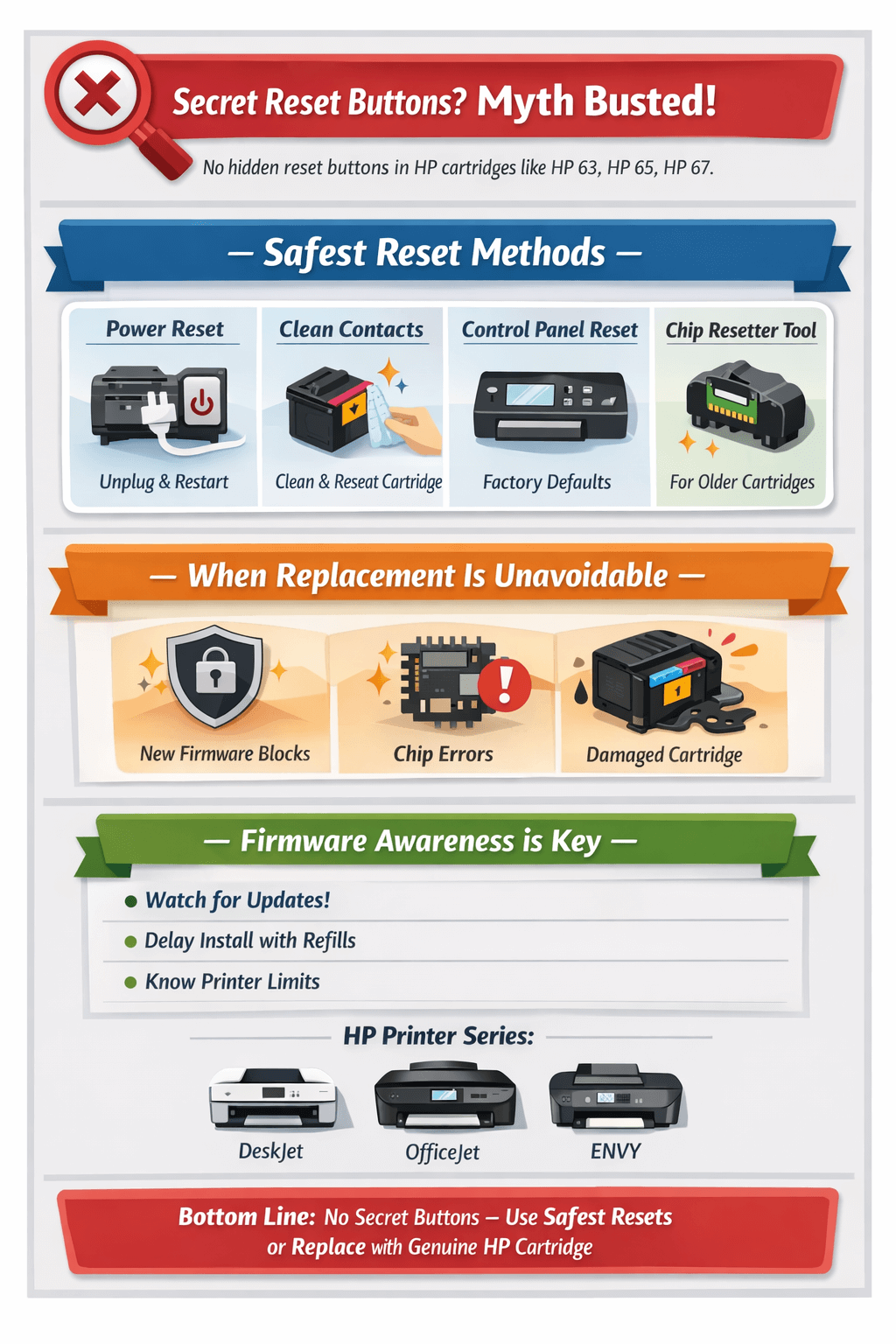
Despite countless online guides claiming otherwise, modern HP cartridges — including HP 63, HP 65, and HP 67 — do not have a hidden physical reset button. All “reset” methods are either digital or involve manipulating printer memory, not the cartridge itself. Any claims of a magical button are simply outdated or misleading.
🔹 Safest and Most Effective Reset Methods
For HP DeskJet, OfficeJet, and ENVY printers, these methods are the most reliable:
-
Power Reset Method – Unplug the printer, hold the power button to drain residual electricity, and restart. This clears temporary errors and printer cache.
-
Manual Cartridge Contact Reset – Clean the cartridge contact pins and reseat cartridges firmly. This resolves most recognition errors.
-
Semi-Reset via Control Panel – Restore factory defaults or use built-in menu options for minor error clearance.
-
Compatible Chip Resetters – Only for older cartridges or models with rewritable EEPROM chips. Modern cartridges with encrypted chips may not respond.
These approaches are user-friendly, low-risk, and preserve printer function without relying on myths.
🔹 When Replacement Is Unavoidable
Even with all these methods, sometimes the cartridge cannot be reset:
-
Newer cartridges with dynamic security that block third-party or refilled ink
-
Firmware updates that invalidate chip memory
-
Damaged or corrupted cartridges
In these cases, the most practical solution is a genuine HP cartridge replacement, which ensures reliable printing and accurate ink level tracking.
🔹 Firmware Awareness Is Key
Always be aware of your printer’s firmware version:
-
Firmware updates may block previous reset tricks or third-party cartridges
-
Delaying updates can allow temporary use of refilled cartridges
-
Staying informed prevents frustration and unexpected errors
🔎 Bottom Line
-
Secret reset buttons? Don’t exist.
-
Temporary fixes? Power resets, cleaning, and semi-reset methods are safest.
-
Permanent solutions? Replacement of cartridges may be unavoidable in modern HP printers.
-
Printer series covered: DeskJet, OfficeJet, ENVY — all follow similar reset and authentication rules.
By combining safe reset techniques with firmware awareness, you can extend cartridge life when possible while knowing when replacement is the only reliable solution.
This is the most practical, user-friendly approach for HP cartridge management in 2026.